Step 2: Basic Account Setup
1
Open Settings
Click your name in the bottom-left corner and select Settings.
2
Customize your bot
Go to Settings → Recording → Transcription Bot.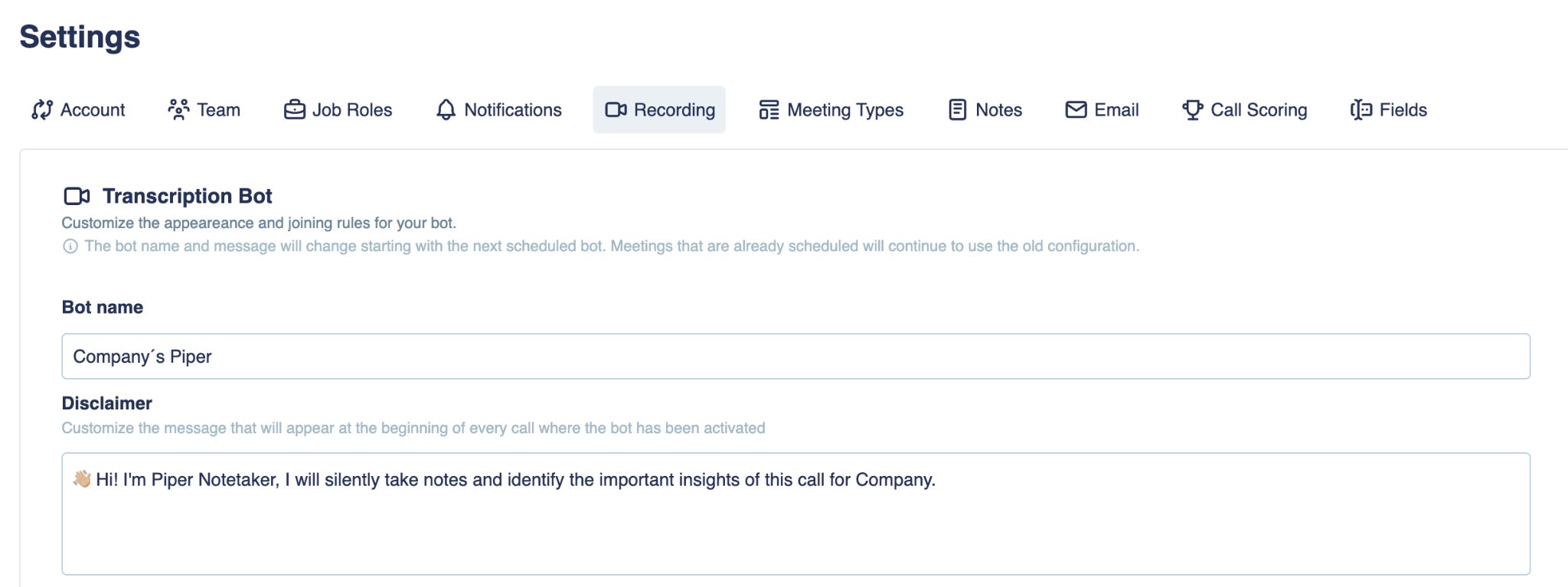
- Bot name — the name your bot displays when it joins your video calls.
- Disclaimer — the message shown at the start of every call where the bot is active, letting participants know the meeting is being recorded.
3
Choose when the bot joins
In the same section, set your auto-join rule: All meetings, Internal meetings, External meetings, Owned meetings, or Do not activate automatically.
By default, Piper automatically joins calls with external participants and stays deactivated for internal meetings.
4
Set deactivation rules (optional)
Add keywords that will stop the bot from joining meetings whose title matches — useful for excluding sensitive topics or specific projects.
5
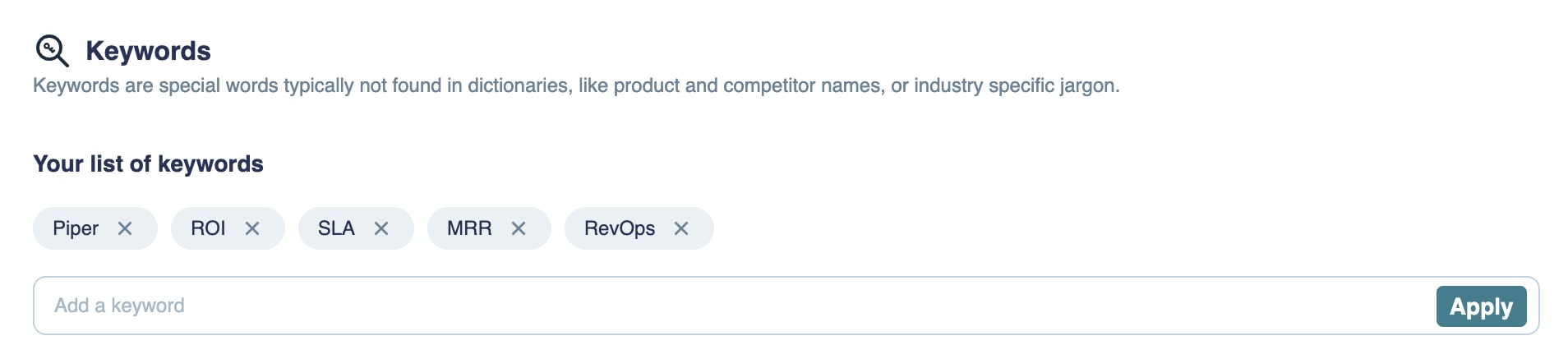
Add vocabulary keywords (optional)
Go to Settings → Recording → Keywords and add names, technical terms, or industry-specific jargon (product names, competitor names, acronyms). This helps Piper transcribe them more accurately.