
What Chat Can Do
- Answer questions about your calls — search by meeting title or participant name to pull up summaries, key moments, or action items from any recorded conversation
- Provide CRM context — surface deal data, opportunity stages, and contact details directly in the conversation (HubSpot, Salesforce, and Pipedrive users)
- Create meetings on your behalf — log new meetings without leaving the chat interface
- Log offline meetings — capture in-person or unrecorded meetings via voice note or typed summary
- Analyze multiple meetings at once — Chat can analyze up to 100 meetings in a single query when you need a cross-call view
CRM context depends on your integration. When you’ve connected HubSpot, Salesforce, or Pipedrive, Chat can pull deal, contact, and opportunity data from your CRM. Without a connected CRM, Chat answers from the transcripts, notes, and tasks stored in Piper.
How to Start a Chat
You can access Chat from anywhere inside Piper using the floating bubble, or start a dedicated conversation from the Chats tab.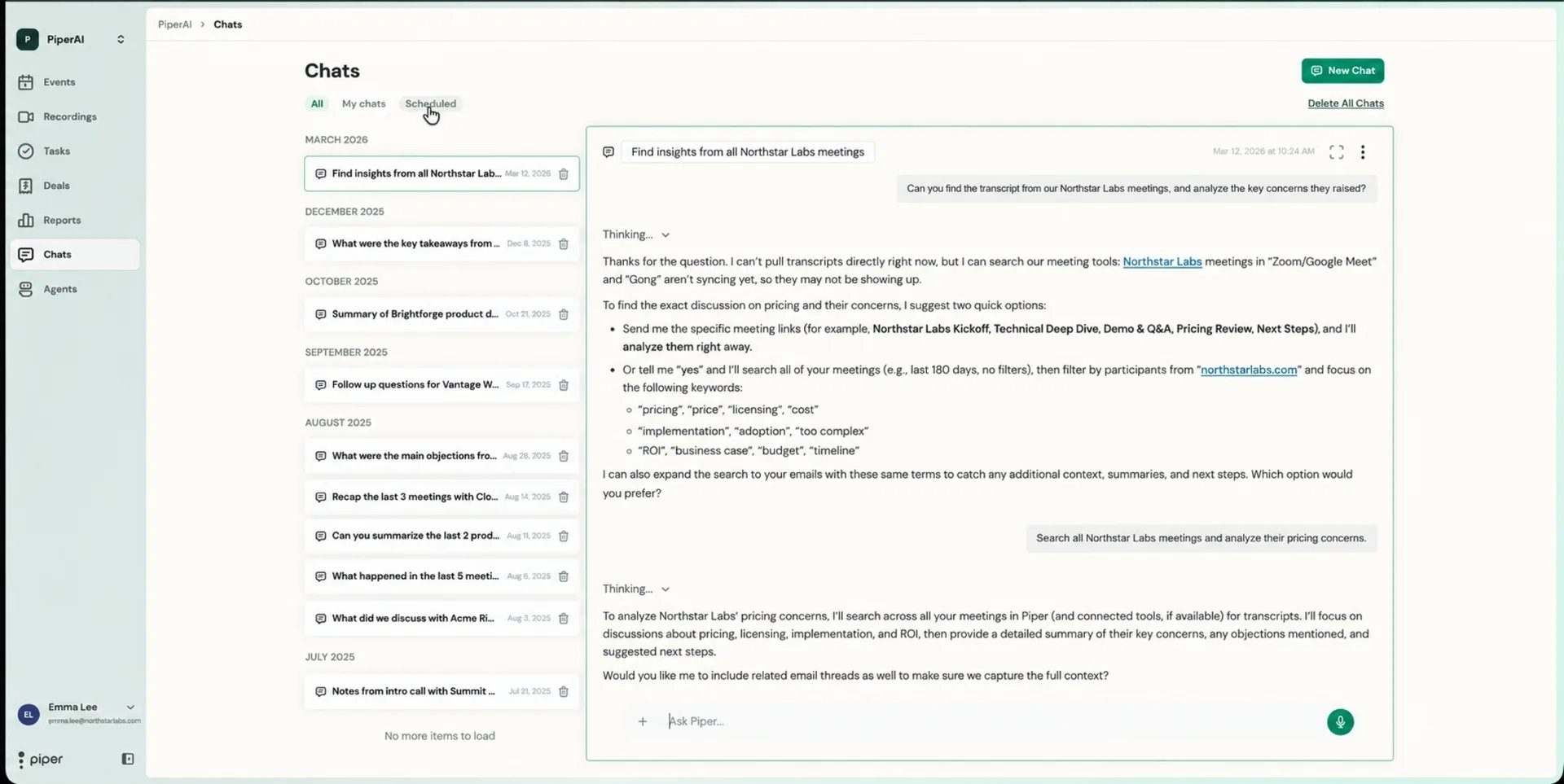
1
Open the chat interface
Click the ‘Ask me anything’ bubble in the lower-right corner of any Piper page. This opens Chat without leaving your current view.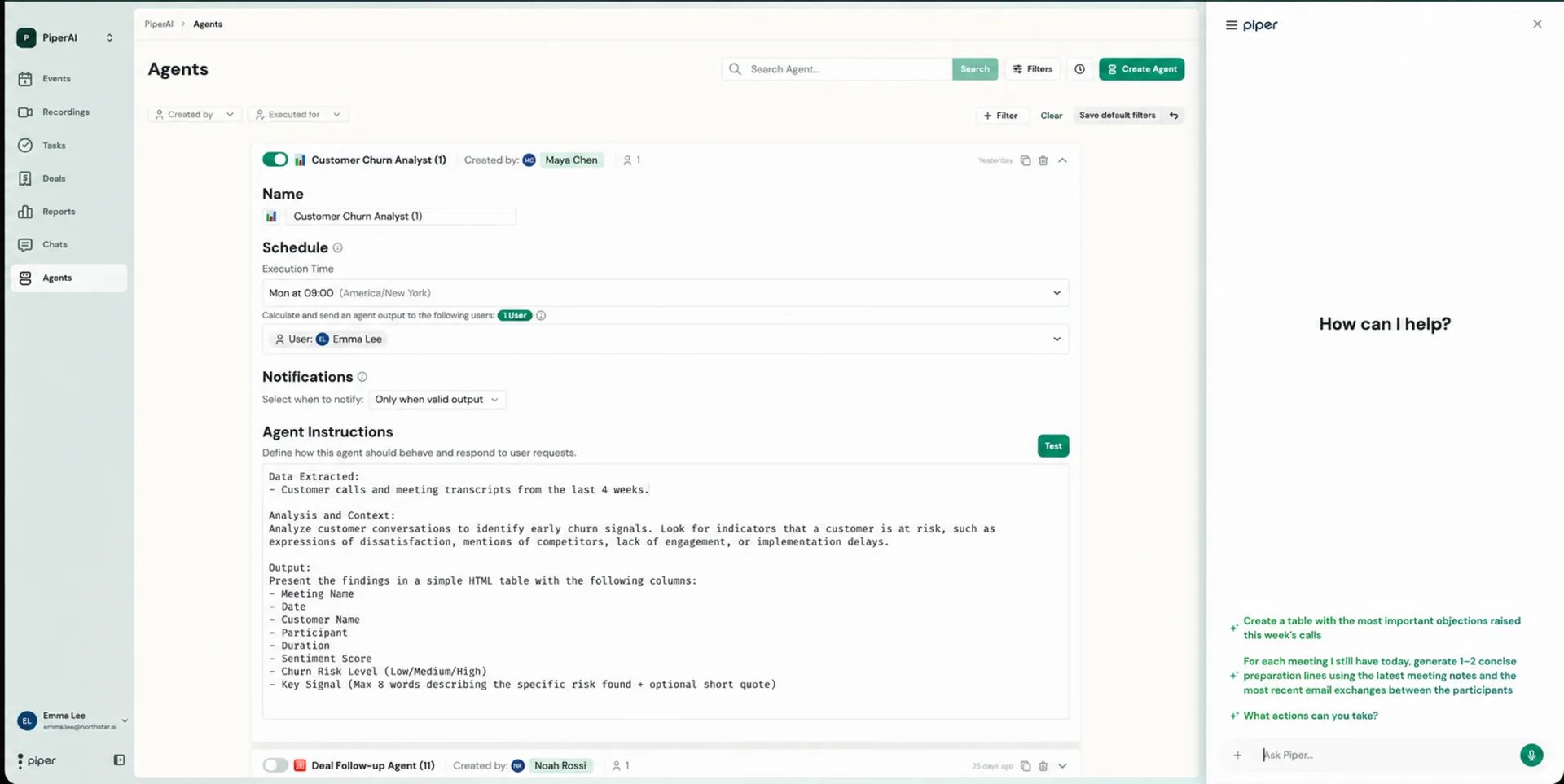
2
Start a new conversation
In the Chats tab, click New Chat in the top-right corner to open a fresh session.
3
Type your question or request
Enter your question in the message field. When you open the Chat Agent, suggested prompts appear automatically — click any one to auto-fill it, then add your specific details before sending.
Getting Better Answers
Chat works best when you give it context. The more specific your question, the more precise and useful the response. Add context by including:- A specific deal or opportunity — for example, “What came up in the Acme Corp renewal call last week?”
- A contact or company name — “What has Sarah at TechFlow mentioned about pricing?”
- A set of meetings or a time range — “Summarize all discovery calls from the past two weeks”
- A specific meeting type — “Look at my QBR calls this quarter and tell me which accounts flagged concerns”
Using Chat on WhatsApp
Piper Chat is also available on WhatsApp, so you can interact with your revenue data from your phone — even when you’re between meetings or away from your desk.What You Can Do on WhatsApp
- Send voice notes — Piper processes audio messages like a regular call, identifies related deals, and extracts key information automatically
- Log offline or in-person meetings — send a voice note describing the meeting and Piper captures it as a logged conversation
- Ask pipeline questions — get updates on deals, recent calls, or contact activity without opening a browser
- Add context to a call or deal — type a note or record a voice message to attach additional detail to an existing conversation
Setting Up WhatsApp
1
Open Integrations settings
Go to Settings → Integrations in your Piper workspace.
2
Enable WhatsApp
Click the toggle for WhatsApp. Select your country, enter your phone number, then click Confirm.
3
Verify your number
You’ll receive a WhatsApp message containing a 6-digit verification code. Enter the code in the modal that appears in Piper, then click Confirm.
How do I disable WhatsApp?
How do I disable WhatsApp?
Go to Settings → Integrations and toggle off WhatsApp. Your number will be unlinked immediately.
Chat vs. Agents: Which Should You Use?
Use Chat when…
You want an answer right now. Chat is ideal for on-demand questions, quick deal lookups, logging a meeting in the moment, or getting a fast summary before jumping on a call.
Use Agents when…
You want something to happen automatically and repeatedly. Agents are the right tool for recurring workflows — weekly coaching summaries, deal risk alerts, sentiment reports — that shouldn’t require manual prompting each time.
Chat can create tasks and log meetings on your behalf. For structured, scheduled automation — like sending a weekly pipeline digest or scoring every call against your playbook — use Agents instead.