
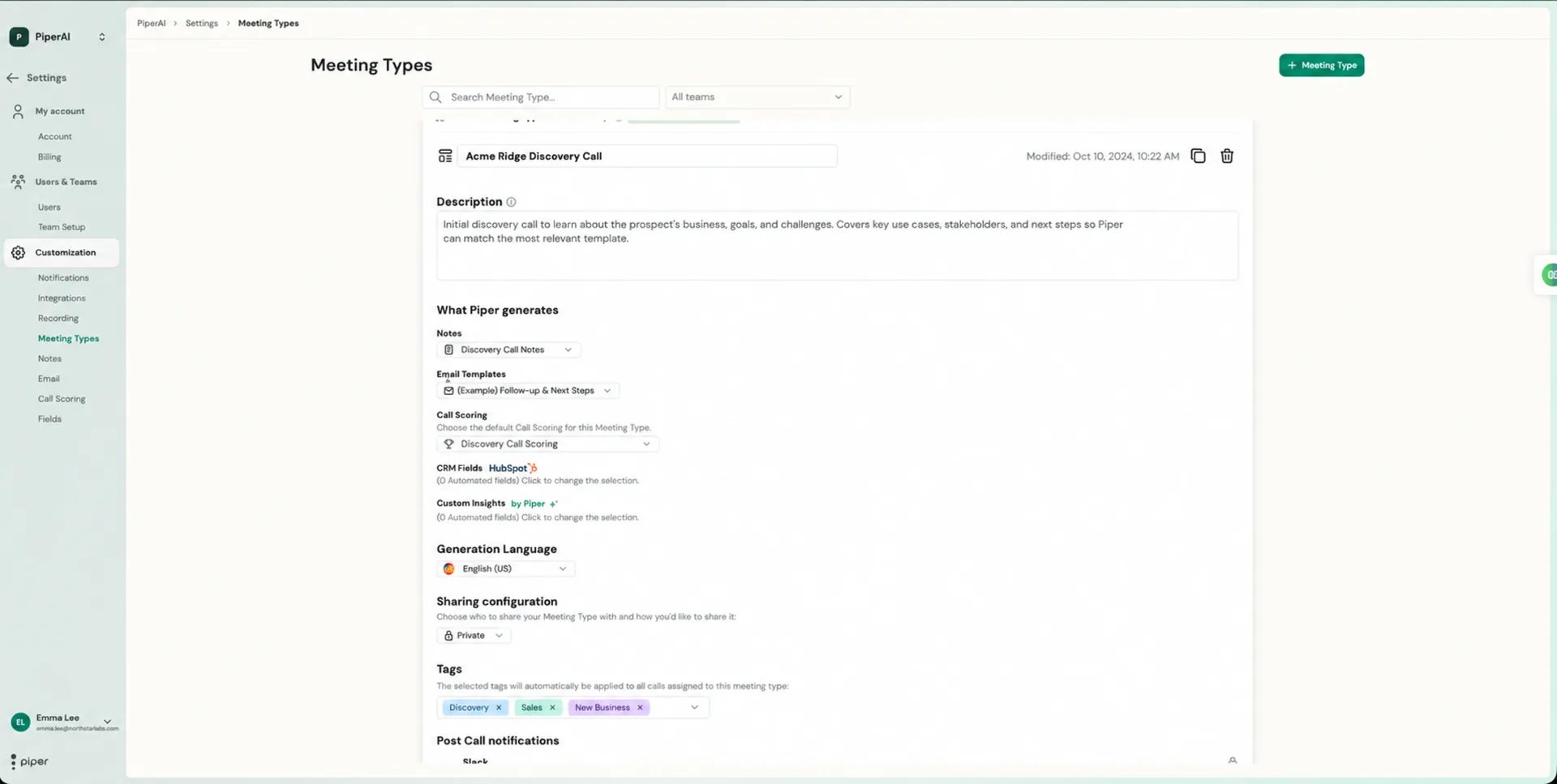
Create a New Meeting Type
1
Open Meeting Types
Go to Settings → Meeting Types and click Create Meeting Type.
2
Name the Meeting Type
Enter a clear, descriptive name (e.g.,
Demo, Discovery, QBR, Customer Onboarding). This name appears throughout Piper and in your CRM records.3
Configure each component
Work through the component sections below — Notes, Email, Call Scoring, Fields, Languages, Sharing, Tags, AutoSync, Zapier, and Bot Deactivation — to tailor Piper’s behavior for this call type.
4
Save and assign
Save the Meeting Type, then set up auto-assignment rules so Piper routes the right calls to it automatically (see Auto-Assignment below).
Configurable Components
Each Meeting Type exposes the following components. Expand any section to learn what it controls and how to configure it.Notes — Summary Template & Prompts
Notes — Summary Template & Prompts
The Notes component controls the structure and content of the meeting summary Piper generates after each call.You have two modes to choose from:Custom Notes Template — You define the structure: sections, headings, and specific prompts that tell Piper what to capture. Use this when you need a consistent, opinionated format (e.g., “Pain Points”, “Next Steps”, “Budget Discussed”).Piper Auto Notes — Piper generates a full narrative summary automatically without a predefined template. This works best when you have detailed CRM Fields configured for structured data extraction, leaving Auto Notes to handle the prose summary on the Notes tab.
Email — Auto Follow-Up Structure & Prompts
Email — Auto Follow-Up Structure & Prompts
The Email component defines the structure and tone of the follow-up email Piper drafts after each call. Configure section prompts to specify what the email should cover — a summary of what was discussed, agreed next steps, resources mentioned, or anything else relevant to this call type.Piper generates the draft automatically; reps review and send from the Transcription page. The goal is a ready-to-send email that requires only a quick read-through, not a rewrite.
Call Scoring — Playbook & Scorecard
Call Scoring — Playbook & Scorecard
Assign a specific playbook or scorecard to this Meeting Type. Piper uses the scorecard to evaluate each call against your methodology — whether that’s MEDDIC, SPIN, a custom framework, or any other structured approach.Scored calls surface coaching insights and trend data across your team, so managers can see which reps are following the playbook and where gaps exist.
Fields — CRM Data Extraction & AutoSync
Fields — CRM Data Extraction & AutoSync
The Fields component controls which CRM data points Piper extracts from the conversation and whether it pushes them to your CRM automatically.To enable Fields generation: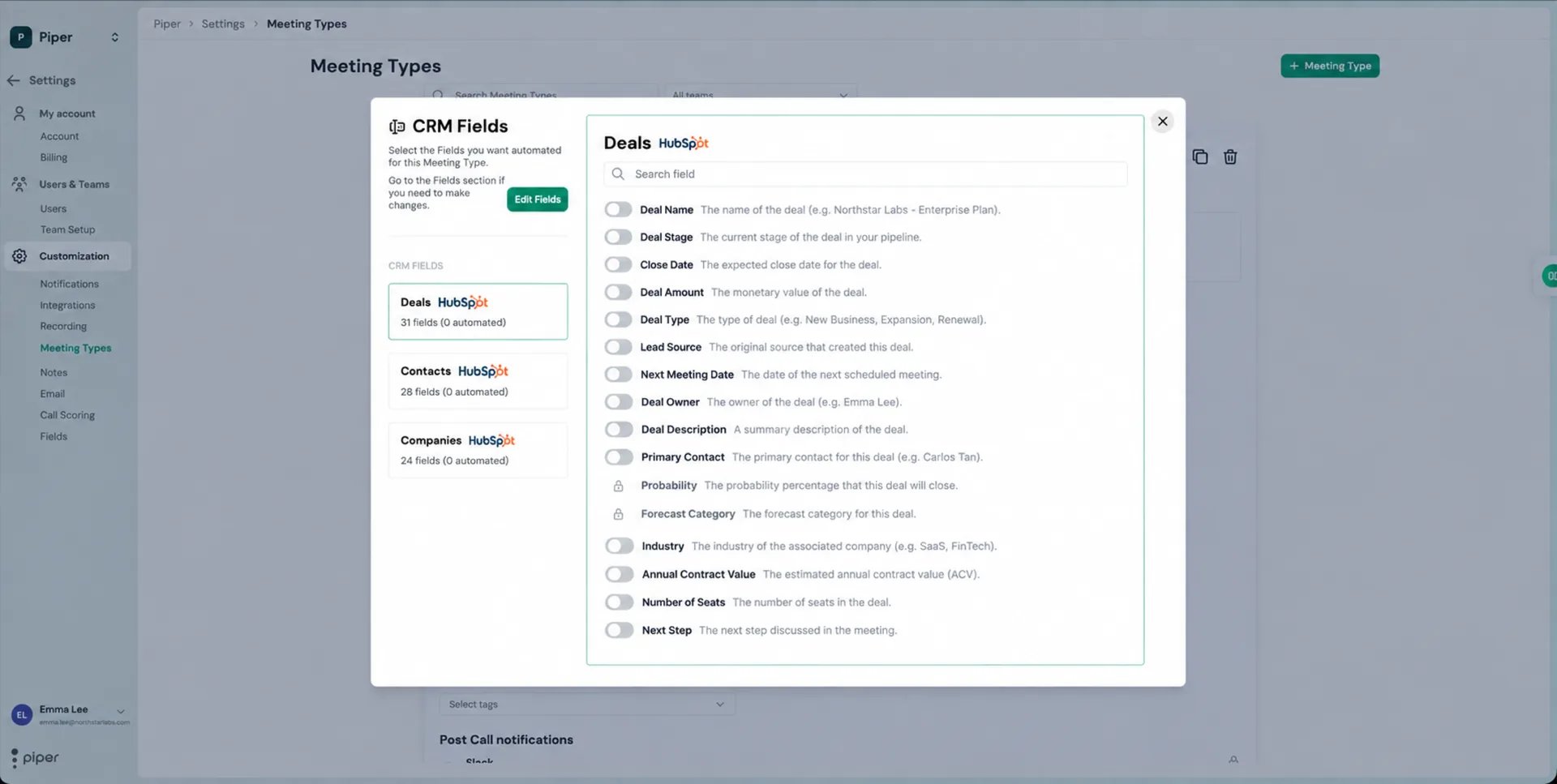
- Navigate to Settings → Meeting Types → [your type] → Fields.
- Toggle on each field you want Piper to extract.
- Enable AutoSync per field to push values to your CRM after every call, or leave it off to hold values for manual review.
Piper never overwrites an existing CRM value by replacing it outright. When writing a field, Piper combines the current CRM value, your configured prompt, and the transcription — so context is always preserved, not lost.
Languages — Output Language
Languages — Output Language
Set the language Piper uses when generating notes, emails, and other content for this Meeting Type. This is especially useful if your team runs calls in multiple languages or if specific meeting types (e.g., regional QBRs) are always conducted in a particular language.Supported output languages: English, Spanish, French, German, Portuguese, Italian, Finnish, and Dutch.
AutoSync — When Content Pushes to CRM
AutoSync — When Content Pushes to CRM
The Fields Auto-Sync toggle controls whether Piper pushes updates to your CRM automatically after each call or holds them for your review.There are three AutoSync types: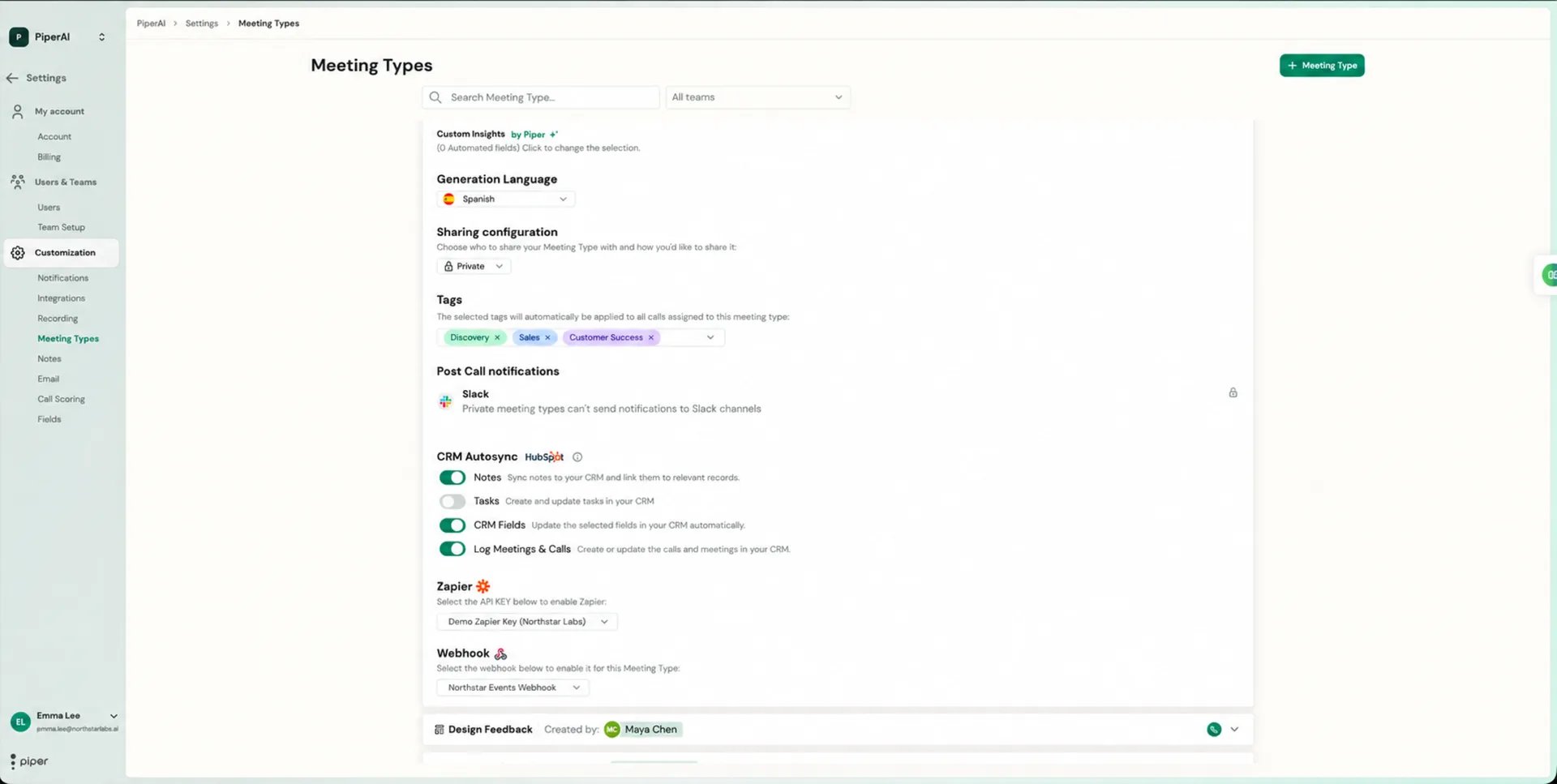
- Notes — The meeting summary pushed to your CRM contact, company, or deal records.
- CRM Fields — Structured field values extracted from the transcript.
- Logged Meetings & Calls — The meeting record itself (attendees, duration, outcome) logged in your CRM.
Zapier — Send Data to External Apps
Zapier — Send Data to External Apps
Enable a dedicated API key for this Meeting Type to trigger Zapier workflows whenever a call of this type is processed. You can generate multiple API keys — one per team or flow — to route data to different Zaps.See Settings → Integrations → Zapier for instructions on generating API keys and installing the Piper app in Zapier.
Bot Deactivation Rules — Skip Certain Meetings
Bot Deactivation Rules — Skip Certain Meetings
Define rules that tell Piper’s recording bot to skip specific meetings of this type. You can exclude meetings by:
- Keywords in the title — e.g.,
Lunch,☕️,Internal Sync - Email patterns — Any keyword containing
@is treated as an email domain pattern. If any attendee’s email matches, the bot skips the meeting (e.g.,@partner-agency.com).
Auto-Assignment
Piper assigns a Meeting Type to each call automatically. It works through three layers, in order:1
Keyword matching on the meeting title
You specify keywords that, when found in the meeting title, assign a particular Meeting Type. For example, the keyword
demo maps to your Demo Meeting Type; onboarding maps to Customer Onboarding.Set this up under Settings → Meeting Types → [type] → Automatic Meeting Types and add your keywords.2
Team Setup defaults by job role
For each job role in your organization (SDRs, AEs, CSMs, etc.), you can configure default Meeting Types per call modality — Video Calls, Phone Calls, Audio Uploads, and Agent meetings.Configure this under Settings → Users & Teams → Team Setup. Every rep in a given role automatically gets the right defaults without any per-user configuration.
3
Call type fallback defaults
If neither a keyword match nor a role-based default applies, Piper falls back to a global default for each call modality: all video calls, all phone calls, or all audio uploads. Set these fallbacks in Settings → Meeting Types.
Keyword matching on the title only applies to video calls. For phone calls — including Aircall — Piper skips straight to the Team Setup default for Phone Calls, then the global Phone Call fallback, unless an Aircall tag already assigned a Meeting Type when the call came in (see below).
Aircall Integration: Assign by Tag
If you use Aircall, Piper can assign a Meeting Type automatically based on the call’s Aircall tag — there’s no separate mapping screen to configure. Piper checks each tag on the call against your Meeting Type names: if a tag’s name matches an existing Meeting Type’s name (case-insensitive), that Meeting Type is assigned immediately, before any of the Auto-Assignment steps above run. For example, naming an Aircall tagSupport the same as your Support Meeting Type routes those calls automatically — just make sure the names match exactly.
A matching Aircall tag always takes priority over keyword matching, Team Setup defaults, and the fallback default. Piper does not analyze the conversation itself to override a tag-based match.