
- CRM
- Phone
- Notifications & Messaging
- Automation
Piper integrates natively with HubSpot, Salesforce (including a Salesforce Sandbox option), and Pipedrive. After every processed call, Piper can create a meeting record, fill deal and contact fields, and push notes — all without leaving Piper.
What CRM sync does
For every call, Piper:- Creates a meeting record in your CRM (with notes, attendees, duration, and outcome set to
Completed) - Fills configured Deal fields with values extracted from the transcript
- Syncs notes to the associated Contact, Company, and Deal records
Piper never overwrites an existing CRM value. When updating a field, Piper computes the new value by combining the current CRM value, your configured field prompt, and the transcript — so no existing context is lost.
HubSpot
Prerequisite: At least one Piper Admin must also be a Super Admin in HubSpot.1
Open the HubSpot integration
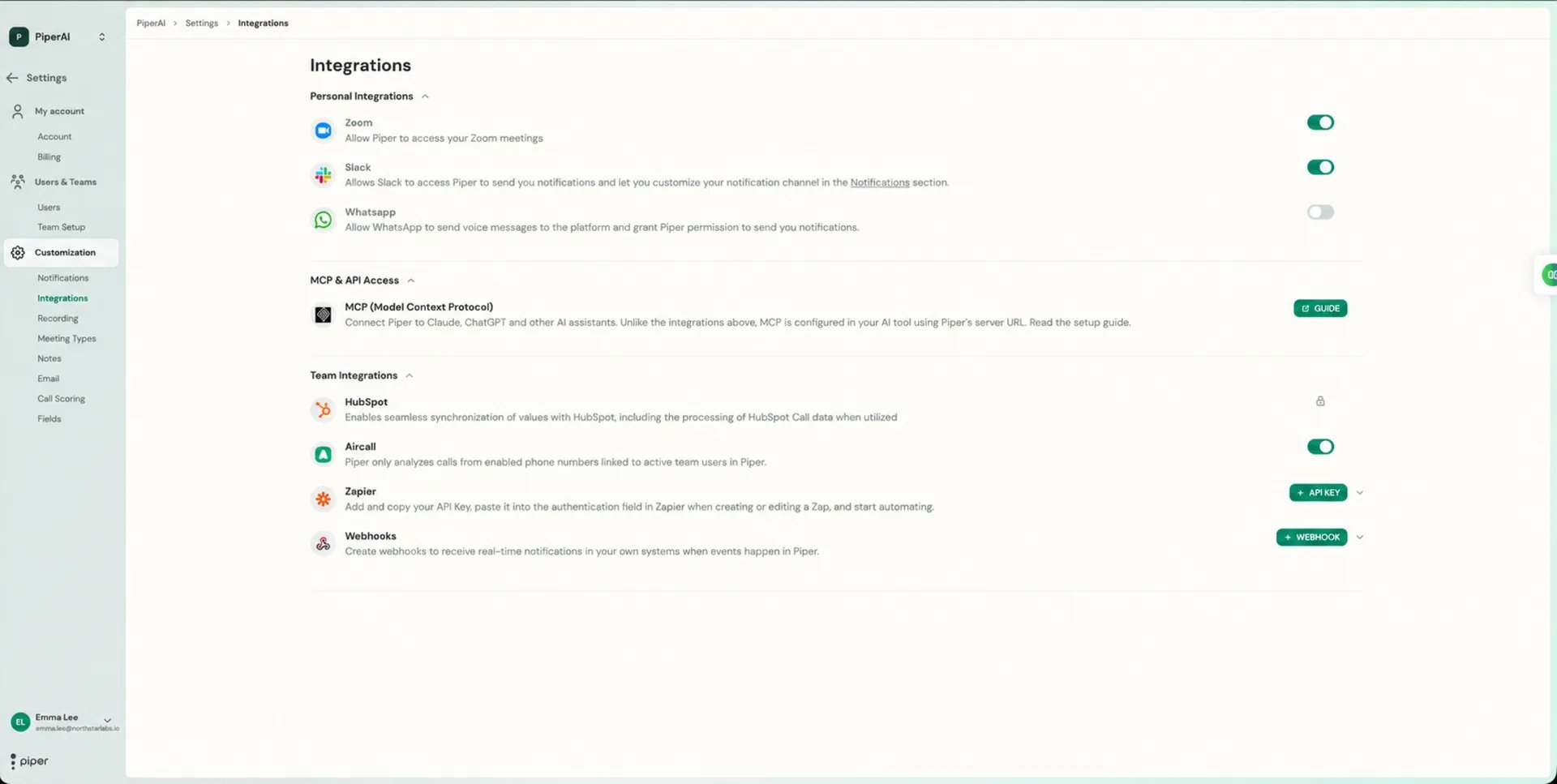
Go to Settings → Integrations → HubSpot.
2
Authenticate via OAuth
Click Connect and complete the OAuth flow. You’ll be redirected to HubSpot to authorize Piper.
3
Configure fields and AutoSync
Once connected, go to Settings → Meeting Types → [type] → Fields to select which CRM fields Piper extracts and whether each field AutoSyncs after calls.
Salesforce
1
Open the Salesforce integration
Go to Settings → Integrations → Salesforce.
2
Authenticate via OAuth
Click Connect and complete the OAuth flow. Salesforce occasionally drops its connection — if you see a Reconnect with CRM banner, return here and reconnect.
3
Configure fields and AutoSync
Configure field extraction and AutoSync per Meeting Type under Settings → Meeting Types → [type] → Fields.
Pipedrive
1
Open the Pipedrive integration
Go to Settings → Integrations → Pipedrive.
2
Authenticate via OAuth
Click Connect and complete the OAuth flow. You’ll be redirected to Pipedrive to authorize and install Piper.
3
Configure fields and AutoSync
Configure field extraction and AutoSync per Meeting Type under Settings → Meeting Types → [type] → Fields, exactly as you would for HubSpot or Salesforce.
CRM AutoSync
AutoSync controls whether Piper pushes data to your CRM automatically after every call or holds it for manual review.Enable per Meeting Type: Settings → Meeting Types → [type] → toggle Fields Auto-Sync.There are three AutoSync categories:When AutoSync is disabled, Piper holds all proposed updates in review mode. Open the Transcription page to inspect what Piper would write, then approve individual field updates by clicking the green arrow button next to each one.
Calendar and Video Conferencing
Piper connects to your calendar and video meeting platforms to schedule the recording bot and capture calls automatically.Google Calendar
Piper reads your primary Google Calendar to know which meetings to send the bot to. Connect via Settings → Integrations.
Microsoft / Outlook Calendar
Piper also connects to Microsoft / Outlook (Office 365) calendars. Sign in with Microsoft to sync your events and schedule the bot. Connect via Settings → Integrations.
Zoom
Install the Piper app from the Zoom Marketplace to enable seamless bot joining in Zoom meetings. The Marketplace app handles bot permissions within Zoom’s ecosystem.
Google Meet
Google Meet is supported natively — the bot joins Meet links discovered on your Google Calendar without any additional Marketplace setup.
Microsoft Teams
Microsoft Teams is supported. The bot joins Teams meeting links found on your calendar events automatically.