
What a Task Contains
Each auto-generated task includes the following fields:Viewing Tasks
Transcription Page — Tasks Tab
Open the Tasks tab on the right panel of any Transcription page to see tasks generated from that specific call. This is the best place to review and send tasks immediately after a meeting.
Tasks Page (Left Sidebar)
Access the Tasks page from the left sidebar to see every task across all your calls in a single view. Filter by status, owner, deal, or date range to find what you need quickly.
Editing Tasks
Before you send a task to your CRM, you can edit any of its fields directly on the Transcription page.1
Open the Tasks tab
On the Transcription page, click the Tasks tab in the right panel.
2
Click the field you want to change
Click into the title, description, due date, or priority fields to edit them inline.
3
Review linked CRM records
Confirm that the task is linked to the correct deal, contact, and company before sending.
Syncing Tasks to Your CRM
Piper integrates with HubSpot and Salesforce. When a task is synced, it is created as a task or activity in your CRM and linked to the relevant Contact, Deal/Opportunity, and Company.- Manual sync
- Auto-Sync
If Auto-Sync is off, tasks are held in review mode on the Transcription page until you choose to send them.
- Send a single task — click the Send button next to an individual task.
- Send all tasks at once — click Send All at the top of the Tasks tab to push every task from the call to your CRM in one action.
If Auto-Sync is off, tasks remain in review mode on the Transcription page and are not sent to your CRM until you manually approve them. No tasks are lost — they stay in Piper until you act on them.
Creating Tasks via the Chat Agent
In addition to auto-generation from calls, you can create tasks by talking to Piper’s Chat Agent. Simply describe the action item in conversation and the agent will create a structured task linked to the relevant deal or contact.Tasks Across All Calls
The Tasks page (accessible from the left sidebar) gives you a complete view of every task Piper has generated, regardless of which call it came from.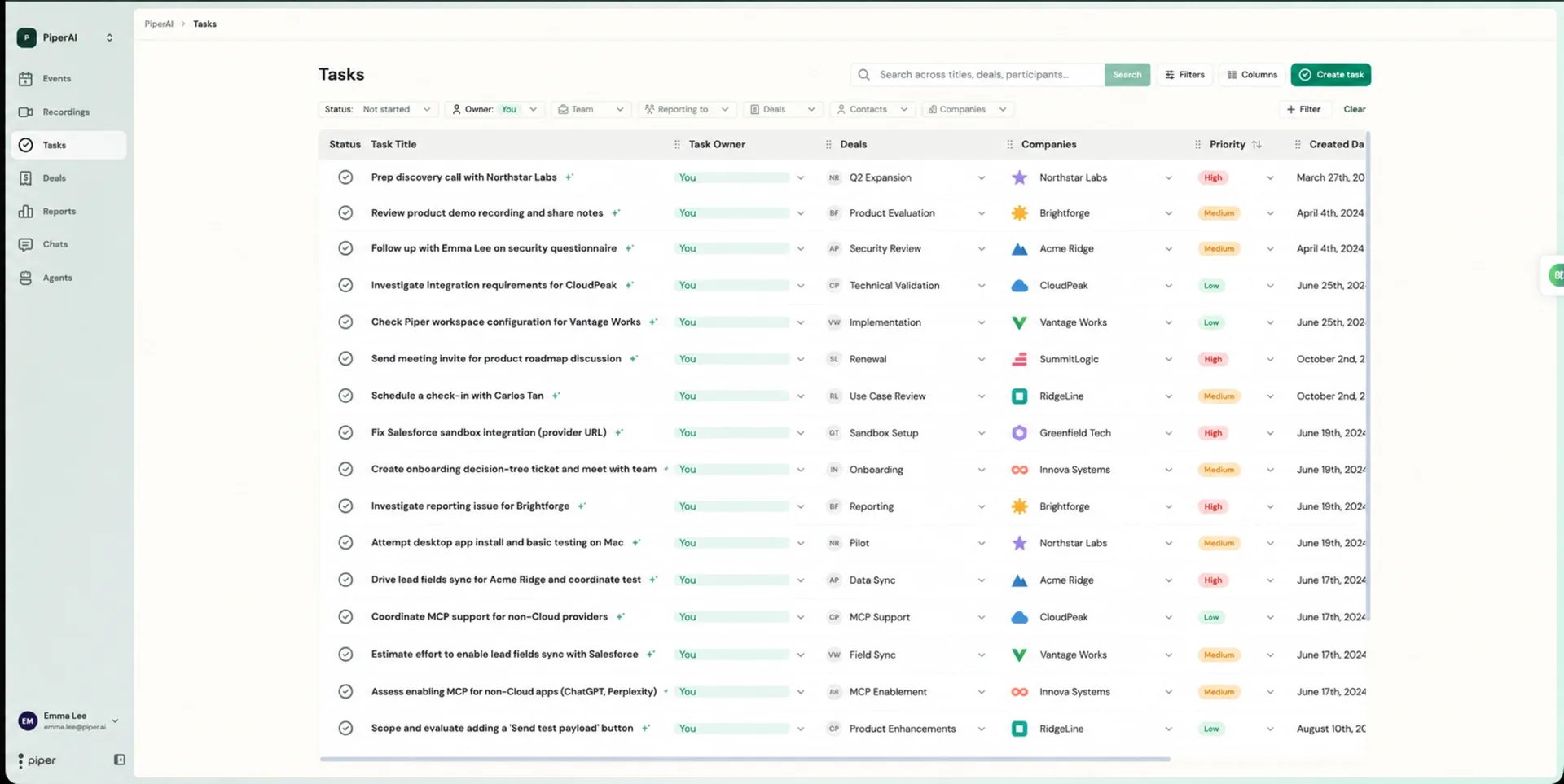
- Status — filter by open, completed, or all tasks.
- Owner — see tasks assigned to a specific team member.
- Deal — view all tasks linked to a particular deal.
- Date — narrow down by due date or creation date.