
Viewing Your Pipeline
Open the Deals page from the left sidebar to see all deals in a structured table. You can customise the view to show exactly what matters to you.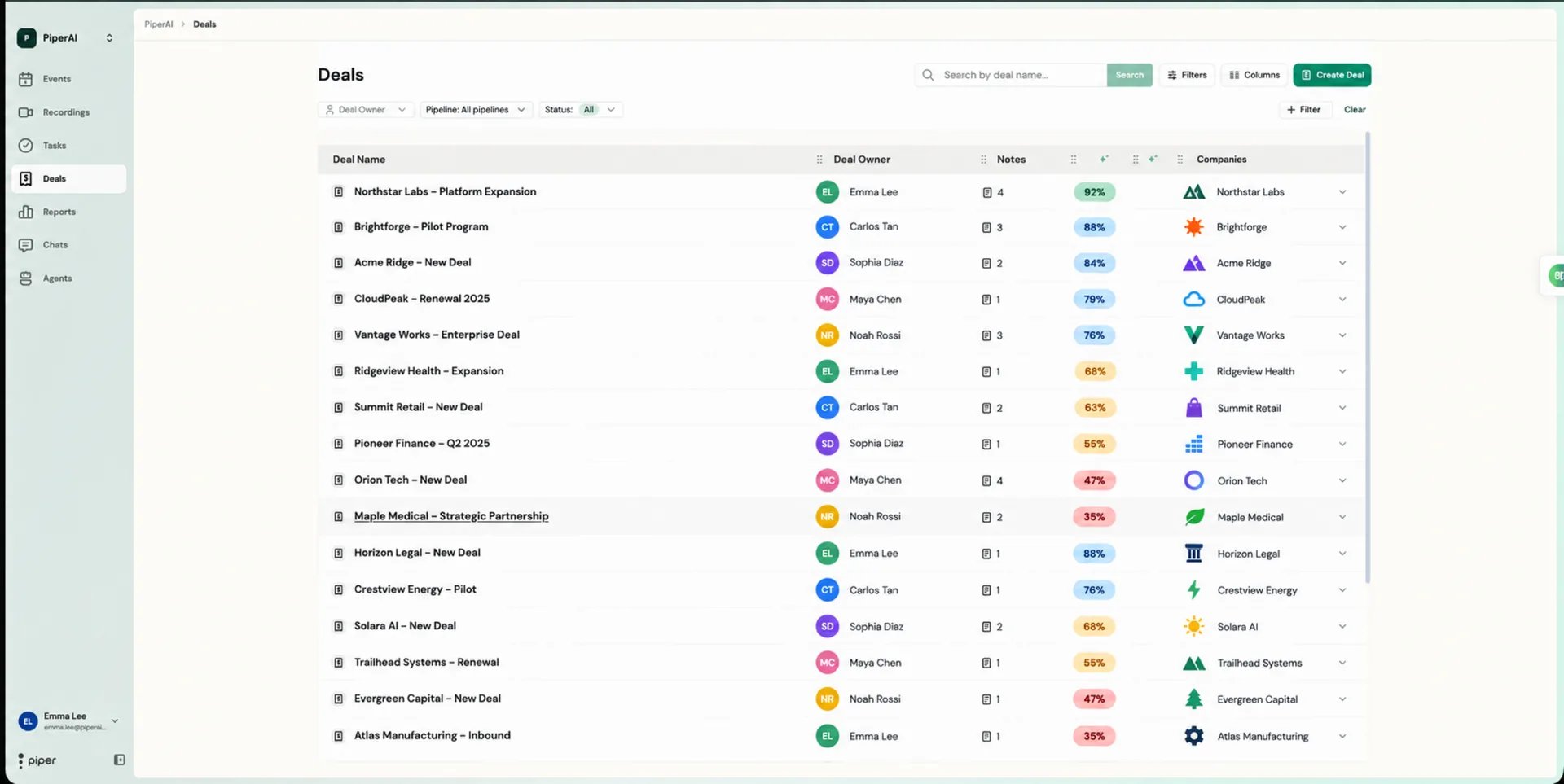
- Select a pipeline — use the Pipeline dropdown at the top of the page to switch between different pipelines synced from your CRM.
- Filter by owner — show only your own deals to stay focused on what’s yours.
- Filter by status — display only active deals to cut out closed-won and closed-lost records.
- Customise columns — choose which fields are displayed in the table to focus on the data that matters most to you.
Editing a Deal
1
Open the deal
Click the deal name in the table, or click the pen icon on the right side of the deal row.
2
Update the fields
Edit any deal fields directly in the side panel or modal that opens.
3
Save your changes
Changes are saved automatically. If Auto-Sync is enabled, updates are pushed to your CRM immediately.
Viewing all notes for a deal
Click the Notes icon next to a deal name in the table to open a consolidated view of every AI-generated note associated with that deal, across all calls where it was linked.Creating a New Deal
1
Click New Deal
On the Deals page, click the New Deal button.
2
Fill in the deal details
Enter the deal name, stage, owner, associated contacts, and any other relevant fields.
3
Save the deal
Click Save. If CRM Auto-Sync is enabled, the deal is also created in your CRM (HubSpot or Salesforce) automatically.
AI-Extracted Field Updates
After a recorded video call ends, Piper analyses the transcript and identifies data points that should update the linked deal’s CRM fields — things like deal stage signals, budget mentions, decision-maker names, and next steps.- Manual review
- AutoSync
1
Open the Transcription page
Navigate to the call’s Transcription page and click the CRM Fields tab on the right.
2
Review proposed updates
Piper lists each suggested field update. Review the proposed values for accuracy.
3
Edit if needed
Click any proposed value to edit it before it’s sent to your CRM.
4
Send updates
Click Send All Fields to push every update at once, or use the individual Send and Reject buttons to approve or discard each field update separately.
Linking a Deal to a Meeting
For Piper to populate CRM fields and associate notes with the right deal, the meeting must be linked to a deal before or shortly after the call.1
Find the CRM entity selector
On the Activity Card on the Events page, or on the Transcription page, locate the rectangle showing the Deal / Contact / Company icons.
2
Select the deal
Click the selector and choose the correct deal from the list.
3
Confirm the link
The deal is now linked. Piper will map all extracted field data and notes to this deal going forward.