
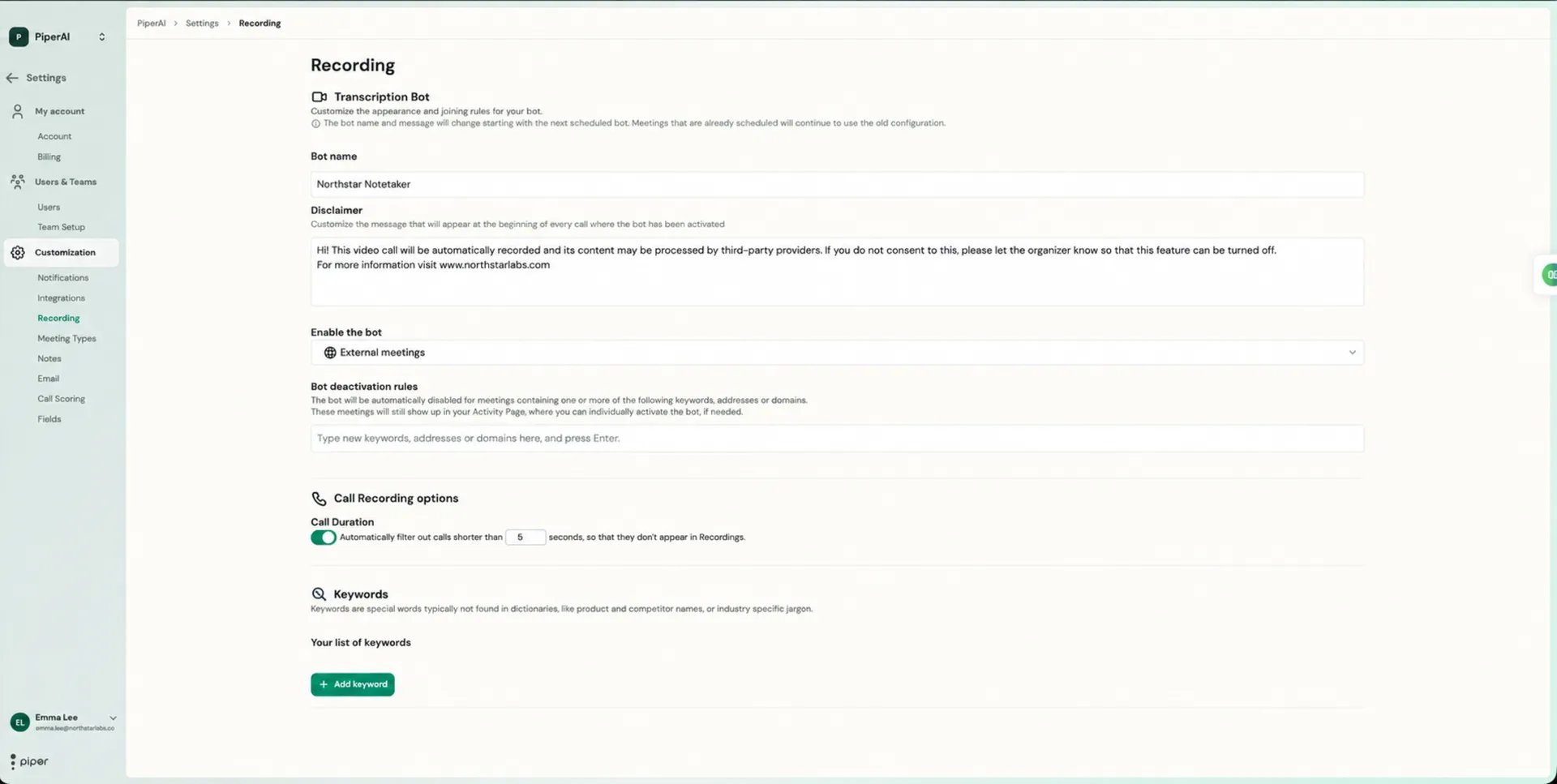
Bot Activation
Navigate to Settings → Recording → Transcription Bot → Enable the Bot and choose one of the following activation modes:Bot Deactivation Rules
Even with a broad activation mode, you can carve out exceptions. Under Settings → Recording → Bot Deactivation Rules, define rules that prevent the bot from joining specific meetings. Keyword rules — Enter words or phrases that, if found in the meeting title, cause the bot to skip. For example:Lunch, ☕️, Off-site, Interview.
Email pattern rules — Enter a string containing @. Piper treats it as an email domain pattern and checks every attendee’s address. If any attendee matches, the bot skips the meeting. For example: @recruiting-agency.com keeps the bot out of any meeting that includes someone from that domain.
You can also set deactivation rules at the Meeting Type level (under Settings → Meeting Types → [type] → Bot Deactivation Rules), which gives you even more granular control over which call types are recorded.
Bot Connection Message
When the bot joins a meeting, it sends a message to let attendees know the call is being recorded. You can customize both the bot’s display name and the message it sends. By default the bot joins as PiperAI and sends this consent message:“Hi! This video call will be automatically recorded and its content may be processed by third-party providers. If you do not consent to this, please let the organizer know so that this feature can be turned off. For more information visit www.piperai.com”To customize for a specific user, go to Settings → Users, find the user, and update their bot name and connection message. Setting an honest, friendly message builds attendee trust and keeps you compliant with recording consent norms.
Bot Status and the Activity Card
The Events page Activity Card shows the current status of the bot for each upcoming and recent meeting. Each status is colour-coded for a quick visual read:Sending the Bot Manually
You can send the bot to any currently active meeting directly from the Events page:1
Find the meeting on your Activity Card
On the Events page, locate the meeting in your Activity Card.
2
Click Send Bot
Click Send Bot on the activity card for that meeting.
Late Additions and Timing
The bot is scheduled to join at each meeting’s start time. If a meeting is added at the last minute and the bot doesn’t join on its own, use the manual Send Bot button from the Events page Activity Card once the meeting has started.Silence Detection
The bot leaves automatically after an extended period with no one talking, so it won’t sit in an empty meeting after a call has wrapped up. If the bot leaves due to silence but the meeting resumes, use Send Bot from the Activity Card to bring it back (the meeting must still be active).Uploading Audio or Video Manually
If you record a call outside of Piper’s bot — on a phone or in a separate recorder — you can still run it through Piper’s full processing pipeline.1
Click the upload button
Click the upload button in the top-right corner of the Events page.
2
Select your file
Choose your audio or video file. Piper supports common formats including MP3, M4A, WAV, MP4, MOV, and AVI, up to 2 GB and 4 hours 15 minutes long.
3
Set the transcription title and Meeting Type
Give the upload a title and select the appropriate Meeting Type so Piper applies the right notes template, scoring rubric, and CRM fields.
4
Confirm the upload
Piper processes the file exactly like a bot-recorded call — you’ll get a full transcript, notes, email draft, and CRM field extraction.