
Activity Cards
Each meeting on your calendar appears as an Activity Card on the Events page. The actions available on a card change depending on whether the meeting is upcoming, in progress, or completed.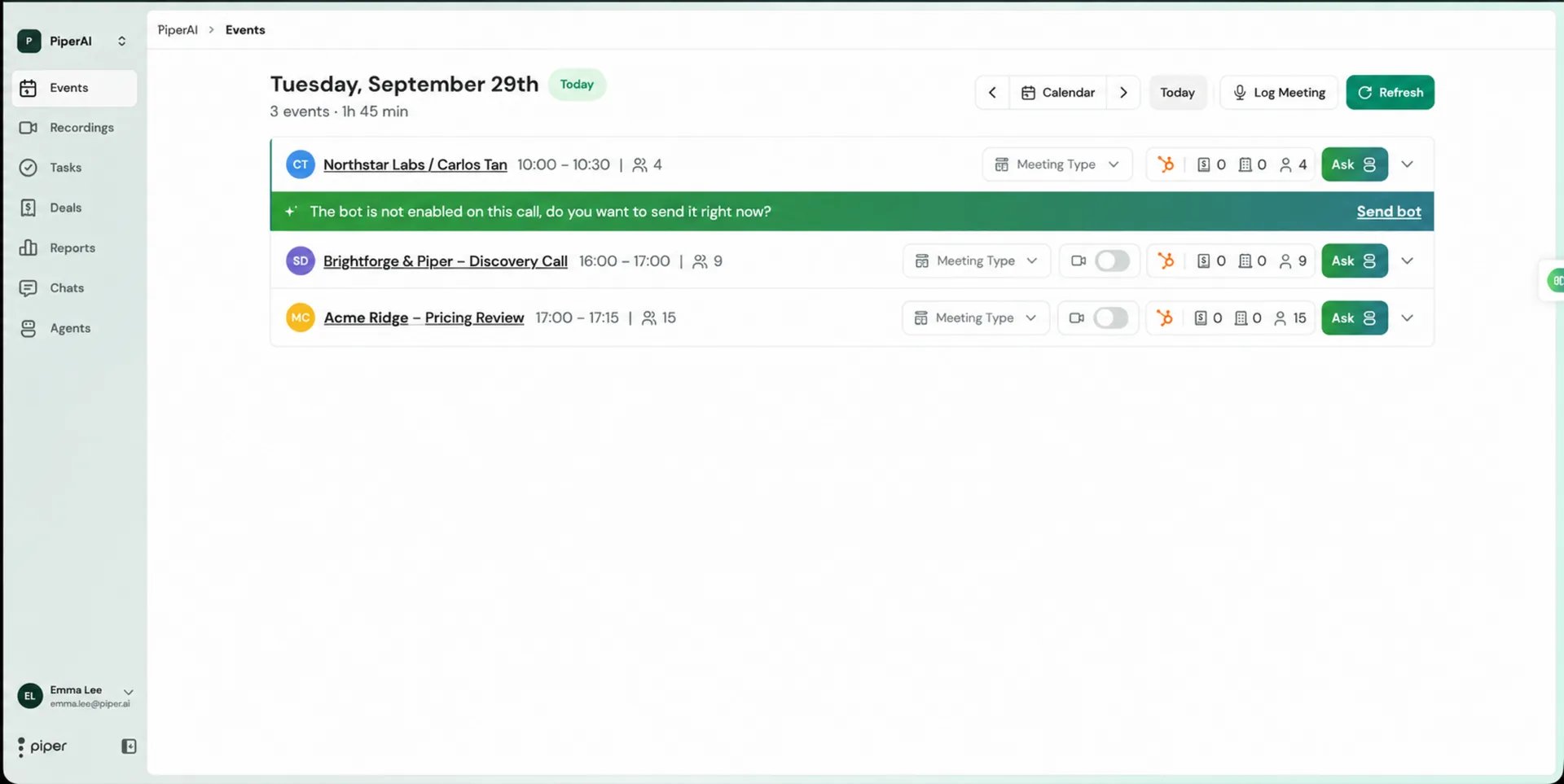
- Before the Call
- During the Call
- After the Call
Use the time before a meeting to arrive fully prepared.
- Enable or disable the bot — toggle whether Piper’s recording bot should join the call.
- AI Call Prep — open a pre-call brief with key context automatically gathered by Piper (see AI Call Prep below).
- Pending tasks — review any open tasks linked to the associated deal.
- Attendee profiles — visit any participant’s LinkedIn profile directly from the card.
- CRM entities — manage linked deals, contacts, and companies.
- Join the call — click the meeting name to open the call link instantly.
AI Call Prep
Before every meeting, Piper automatically assembles a pre-call brief so you walk in with full context — no manual research required.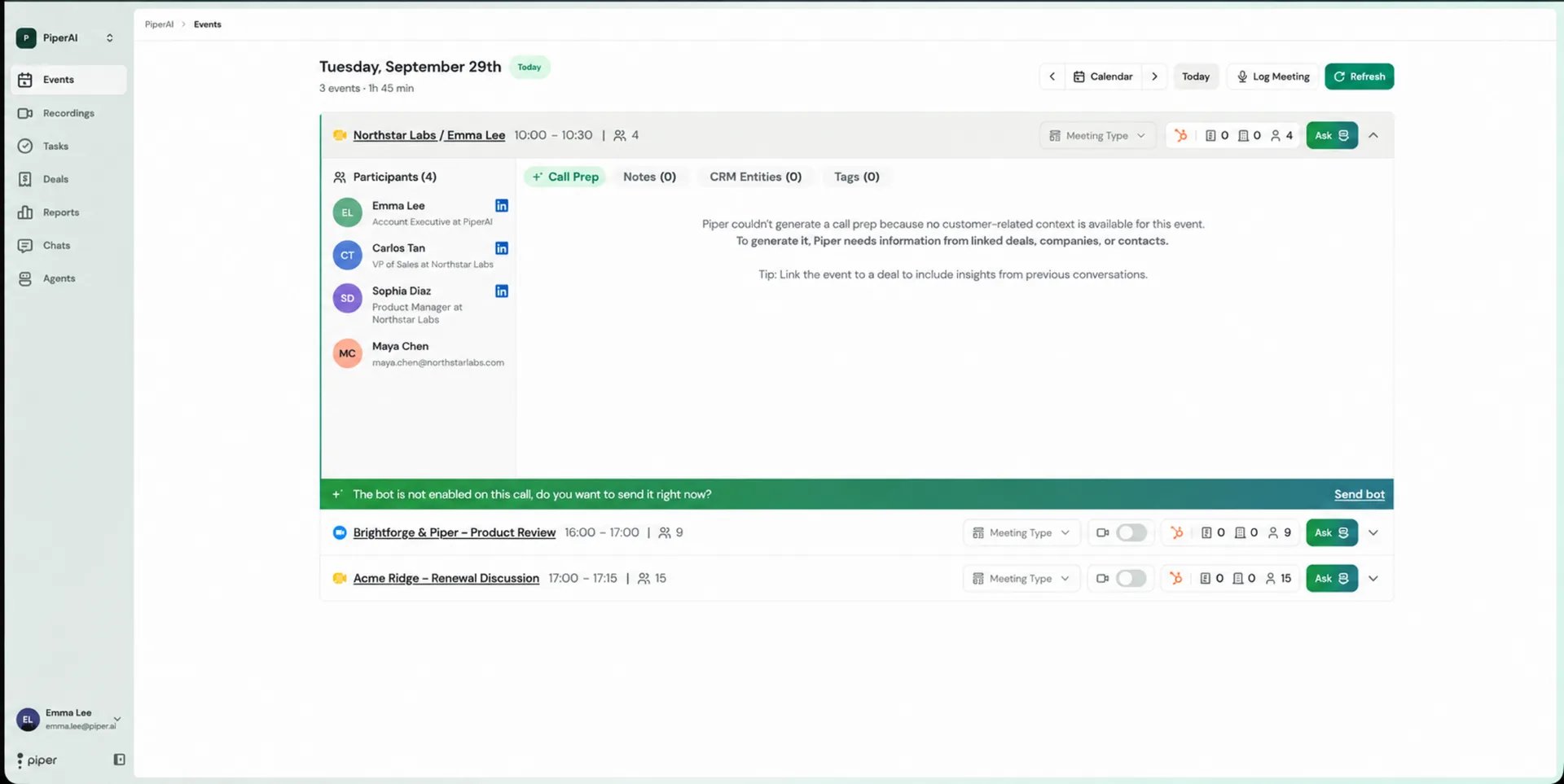
- Past call notes — key takeaways from previous conversations with the same contacts.
- CRM context — account details, current deal stage, and related CRM records.
- Participant info — roles, titles, recent interactions, and LinkedIn links for every attendee.
- Recent updates summary — a synthesised overview of what’s changed since your last touchpoint.
- Open action items — any unresolved tasks tied to the deal.
Calendar Sync
Piper keeps your calendar up to date automatically.- Auto-sync runs automatically in the background, pulling in new or updated events from your connected calendar.
- Manual refresh — click the refresh button in the top-right corner of the Events page to sync immediately.
If a meeting you just added doesn’t appear yet, use the manual refresh button to pull it in right away.
Piper connects to Google Calendar and Microsoft / Outlook calendars. For Google, your primary calendar is synced — meetings on secondary calendars (including those created automatically by your CRM) may not appear on the Events page.
Uploading Offline or Face-to-Face Recordings
Piper isn’t limited to video calls. Click the Upload button in the top-right corner of the Events page to send an audio or video file from an in-person meeting, phone call, or any offline conversation through Piper’s full transcription and AI analysis — see Uploading Audio or Video Manually for supported formats, size/length limits, and the full steps.Bot Status & Behaviour
Piper’s bot joins your calls automatically and records on your behalf. The Activity Card always shows the current bot status so you know exactly what’s happening.
Re-sending the bot during an active meeting: If the bot didn’t join automatically, click Send Bot on the Activity Card while the meeting is in progress. The bot will attempt to join immediately.
Automatic exit: The bot leaves a call automatically after an extended period of silence to avoid recording dead air.
Linking CRM Entities to a Meeting
To make sure Piper maps notes and extracted fields to the right deal, contact, and company, you should confirm CRM links before or during each meeting.1
Locate the CRM entity selector
On the Activity Card (or on the Transcription page), find the rectangle showing the Deal / Contact / Company icons.
2
Select the relevant records
Click the selector and choose the correct deal, contact, and company from the dropdown lists.
3
Verify auto-linking
If an attendee is associated with exactly one open deal in your CRM, Piper links it automatically. If they’re connected to multiple deals, you need to set the link manually.
If no deal is linked to a meeting, CRM fields won’t populate and notes won’t be associated with the correct record. Always verify the CRM link before or shortly after each call.