
Browsing the Gallery
The Gallery displays all previously recorded calls alongside any transcriptions your teammates have shared internally. Each meeting appears as a row in the table — use Columns to choose which details are shown.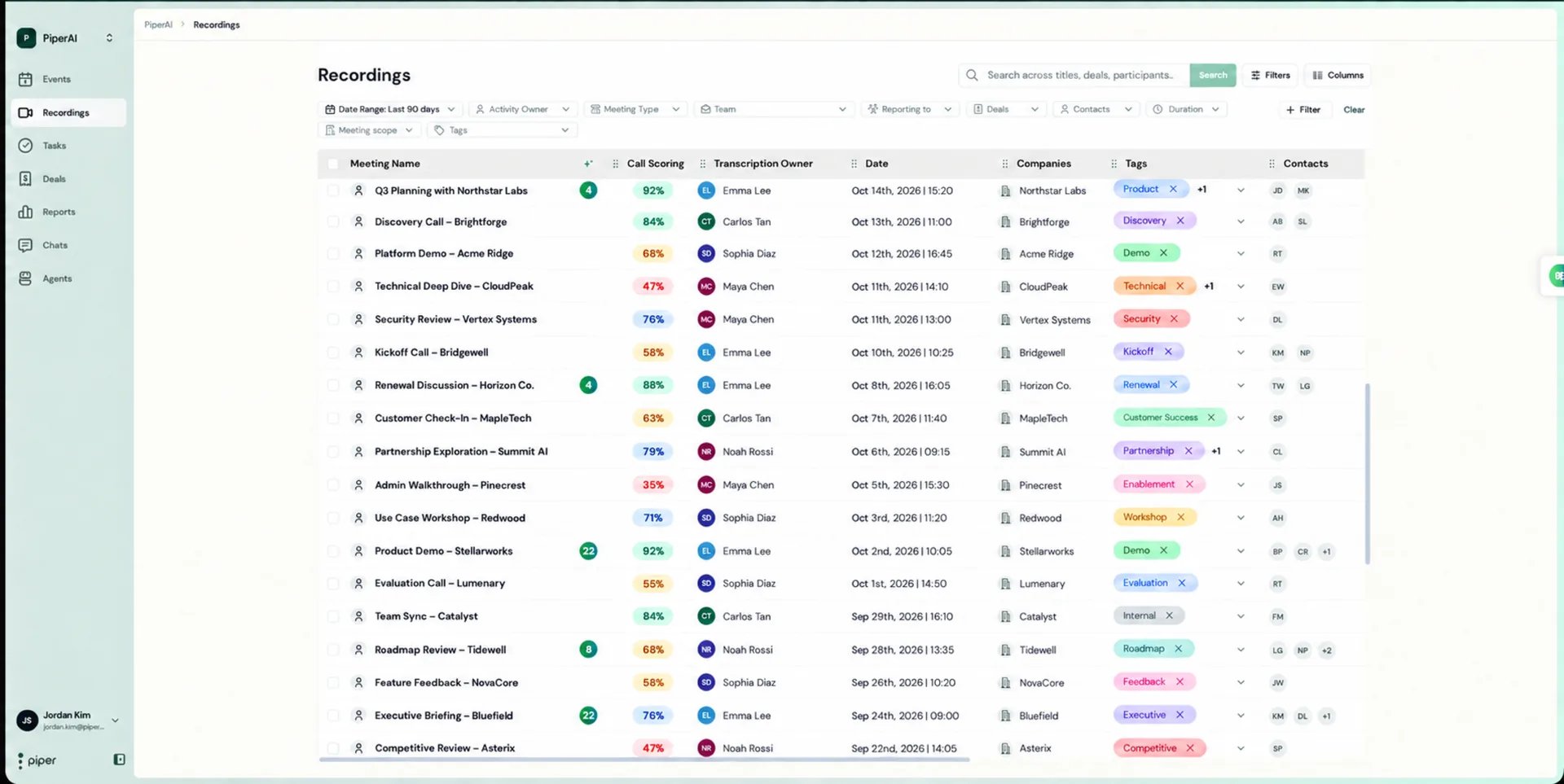
Filtering and searching
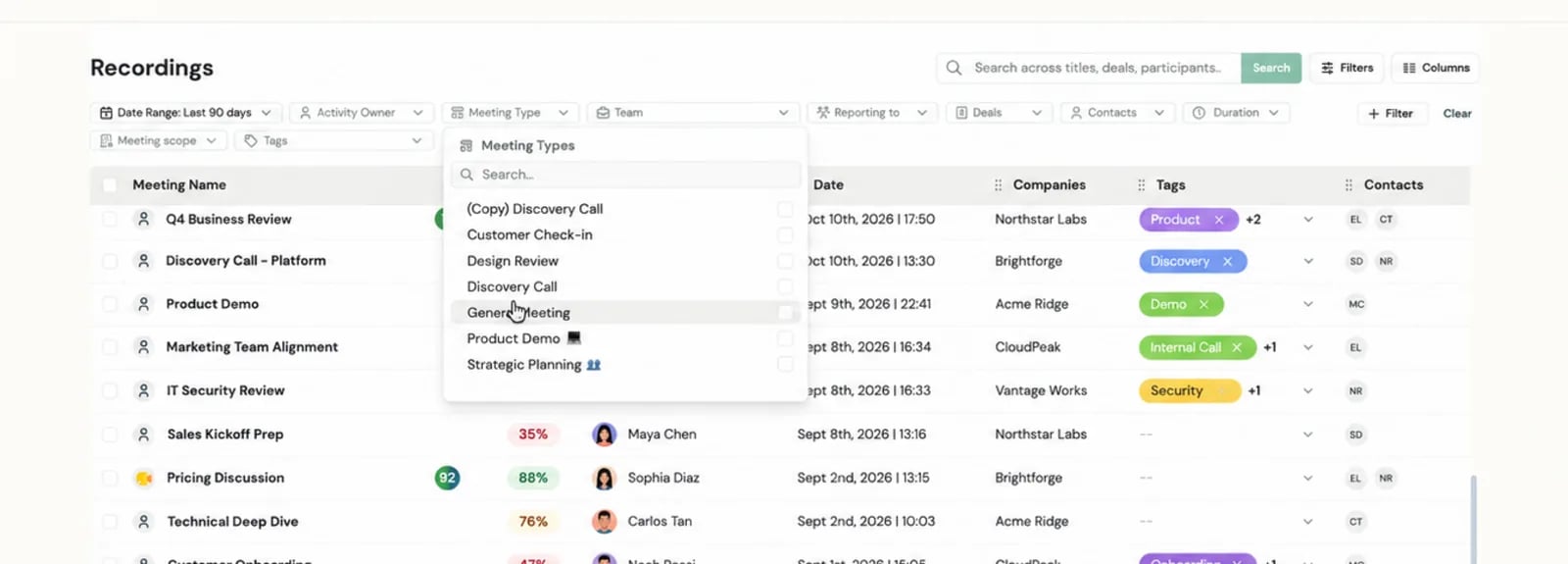
Use the controls at the top of the Gallery to narrow down the list:- Filter by owner, meeting type, or team — each of these accepts multiple selections at once (e.g. three reps and two meeting types together), not just one value.
- Filter by CRM objects — find meetings linked to a particular deal, contact, or company.
- Internal vs. external — separate internal meetings (all attendees from your domain) from customer-facing calls.
- Search — enter at least 3 characters (a meeting title, contact name, or email address), then press Enter or click Search to find a specific recording.
Sharing Recordings
Piper gives you granular control over who can access each recording. You can update sharing settings from the Gallery or directly from the Transcription page.Internal sharing options
Private
Only you can see this recording. Use this for sensitive conversations or calls still under review.
Team
All members of your team can view the recording. Ideal for calls worth sharing for coaching or alignment.
Participants Only
Only the attendees of the meeting can access it. Good for collaborative calls where attendees may want to revisit the discussion.
External Link
Anyone with the link can view the recording — no Piper login required. Use this to share with clients or prospects.
How to update sharing settings
- From the Gallery
- From the Transcription Page
1
Find the meeting card
Locate the recording in the Gallery list.
2
Click the sharing icon
Click the sharing icon on the meeting card.
3
Select an option
Choose Private, Team, Participants Only, or External Link from the menu.
Standard users can only change sharing settings for recordings they own. Admins can update sharing settings for any recording they have access to.
What external viewers see
When you share a recording via an external link, the recipient does not need a Piper account. They can view:- ✅ The video recording
- ✅ The full transcript
- ❌ Internal notes
- ❌ Scorecards
- ❌ CRM fields
- ❌ Follow-up email drafts
Playback and Navigation
Adjusting playback speed
To change how fast the video plays:1
Open the video player
Navigate to the Transcription page for the recording.
2
Click the three-dot menu
Click the three dots (⋯) inside the video player controls.
3
Select a speed
Choose 1x, 1.25x, 1.5x, or 2x from the speed options.
Navigating via transcript
Click any word in the full transcript on the left side of the Transcription page to jump the video to that exact moment. This makes it fast to review specific parts of a call without scrubbing manually.Downloading and Copying Content
You can download or copy content from any recording using the menus on the Transcription page.Piper does not have a built-in bulk export feature. To export a large number of recordings, download them individually or contact Piper support for assistance with bulk exports.
Deleting a Recording
To delete a recording:1
Open the Transcription page
Click the recording in the Gallery, then Open full recording in the preview.
2
Open the options menu
Click the three dots (⋯) in the upper-right corner of the page.
3
Select Delete Transcription
Click Delete Transcription and confirm when prompted.